Plan mode
Plan mode fills the open days in your plan with suggestions from your own ideas and sources. How to turn it on and off, and how to review, write, move, dismiss, clear or replan what it suggests.
When you're behind on your goal, the hard part often isn't the writing. It's deciding what to write about on Thursday. Plan mode does that part for you. Wren looks at the days in your plan that still need a post and puts a suggestion on each one, using material you already have.
A suggestion is just a proposal. It isn't a post. It never publishes, and it only counts toward your goal once you write it, then schedule or publish the post.
Plan mode is part of Soar. The pricing page shows which plans include it.
Where to find the switch

Plan mode is a switch above your calendar:
- On your Home page, at the right of the Your plan heading.
- On your Posts page, in the row just above the calendar.
It's a single setting, so turning it on or off in one place changes it in the other. You can also find it in Settings → Post Settings. Plan mode is on by default.
The small ⓘ next to the switch tells you what Plan mode does. Once Wren has planned, it also tells you when it last did. You can open it by clicking it or with the keyboard.
What a suggestion is
When Plan mode is on, suggestions show on the calendar on your Home page and on your Posts calendar. Each one sits on its day as a card with a dashed outline, which sets it apart from your own posts. The card shows the title, a small sparkle, the dot of the content pillar it's for, and a Suggested label. A suggestion for today says Today instead. The Key under the calendar explains each card style.
Where suggestions come from
Suggestions come from your own material:
- Your ideas: the ones in your idea bank you haven't written yet. These come first, because you've already decided they're worth writing.
- Your sources: the angles Wren suggested on your trends, saved articles (including Readwise), calls and Top Hits, plus Wren's recommendations.
Wren tries to rotate your content pillars, so the pillar you posted about least recently tends to come up next. It's a preference, not a rule. Wren would rather give you a good fit from another pillar than a weak one from the "right" pillar.
If your own material runs out, Wren may write one new recommendation for the pillar that needs it most, and suggest that.
Which days get a suggestion
Wren only suggests enough posts to close the gap between your goal and what you've already planned. It works from the goal you set on Home or in Settings ("I want to publish 2 posts a week, usually on Tue · Thu, and have them scheduled 2 weeks in advance"):
- Only inside your goal window, from today to the end of how far ahead you plan.
- Only on your posting days: the "usually on" days in your goal. If you haven't picked any, Wren works them out from the days you've published on before. You can change them any time.
- Only on open days. A day that already has a post on it (scheduled, or a draft you put on that day) doesn't get a suggestion.
- Only as many as you need. Each draft already on your calendar covers one post you need, so Wren suggests one fewer.
If you haven't set a goal, Wren has nothing to plan against and won't suggest anything. Set your goal on Home first.
When you turn Plan mode on, Wren plans your open days right away, so suggestions appear within a minute or two instead of overnight. You'll see "Planning…" while it works. After that, Wren keeps your plan filled each night. If Wren can't plan right away (for example, if you've already used today's replans), Plan mode stays on and a short note tells you what happens next.
The suggestions banner
When you're behind, a banner above the calendar says where you stand. For example: "You need 5 more posts to be on track. Your Oct 6 draft covers one, and Wren suggested the other 4." From there you can Review the suggestions or Clear all.
Reviewing a suggestion
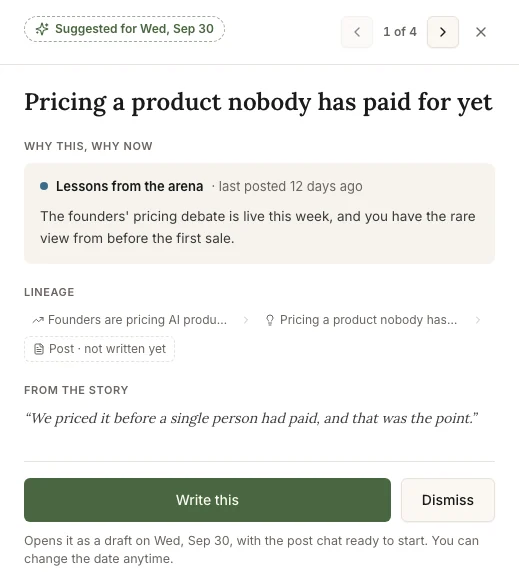
Click a suggestion card, or Review in the banner, to open the review panel. The arrows at the top step through all your suggestions. For each one you'll see:
- Why this, why now: which pillar it's for, how recently you posted in that pillar, and a line on why the idea or source fits.
- Lineage: where the suggestion came from, meaning the source, the idea and the post it would become. Click the source or the idea to open it.
- The quote from the source that the angle is built on, when there is one. If the suggestion is one of your ideas, Open the idea takes you to it.
Write this
Write this turns the suggestion into a draft on that day and opens it. The post chat is ready, with @outline already in the message box. Nothing is sent until you press send, so you can add your own thoughts first or pick another mode.
The new post is a draft on your calendar, not a scheduled post. It won't publish or remind you until you schedule it, and you can move it to another day whenever you like. If the suggestion came from a source, Wren saves it to your idea bank on the way, so the post keeps its link back to where it started. If the idea has a pillar, the post starts with that pillar.
If you leave without writing anything, open the post again and click Start with Wren — outline it to pick up where you left off.
Moving a suggestion to another day
You can move a suggestion before you write it in either of two ways:
- Drag its card onto another day on your calendar.
- Click Move to… in the review panel and pick a day. This works from the keyboard and on touch screens too.
You can move a suggestion to today or any later day in your goal window, as long as that day doesn't already have a post or another suggestion. A day showing "Nothing to suggest for this day yet" accepts the suggestion in its place.
A suggestion you moved stays on the day you picked, even if you don't usually post that day, and Replan leaves it there. If your plan still needs a post on the day you moved it from, Wren may suggest something else for that day.
Dismissing a suggestion
Dismiss takes a suggestion off your calendar. Wren then asks why, and you don't have to answer:
- Not now
- Wrong pillar
- Not this idea
You can also click Skip. Either way, a dismissal sticks: Wren won't suggest that idea or angle again. The idea itself stays in your idea bank. Only the suggestion goes.
Replan and Clear all
Replan sits next to the Plan mode switch. It asks Wren to plan your open days again right away instead of waiting for tonight. Wren replaces its own suggestions but keeps the ones you moved, and the drafts you started with Write this. You can replan a limited number of times each day. Hover over or tab to Replan to see when Wren last planned.
Clear all removes every suggestion from your calendar at once and pauses suggestions. While they're paused, Wren won't add new ones, and the ⓘ and the Replan tooltip say "Suggestions paused until you replan." Plan mode itself stays on. Replan turns suggestions back on. Suggestions you cleared can come back on a replan. Ones you dismissed one at a time won't.
Days Wren can't fill
Sometimes Wren has nothing good left to suggest for a day. Rather than make something up, it leaves the day empty and tells you so: "Nothing to suggest for this day yet." The day has two buttons:
- Brainstorm with Wren opens the Brainstorm drawer for that day, with a prompt already in the message box (for example, "I need a post for Thursday. What have I not written about yet?"). Edit it or send it as it is. If you save an idea from that conversation with Save to that day, it goes onto the day as a draft.
- Capture an idea opens a new idea so you can write down whatever's on your mind. It doesn't put anything on the day.
Turning Plan mode off
Plan mode is also where your posting goal lives. When you turn it off:
- Your calendars show only your own posts. Wren stops planning, and suggestions, the banner and Replan are hidden.
- Your Home page hides the goal sentence, the on-track or off-track label and the goal window shading on the calendar. The section is renamed Your calendar.
- Wren pauses your scheduled writing nudges about your goal.
Your goal stays saved, so turning Plan mode back on brings all of this back, and Wren plans your open days again.
If your plan doesn't include Plan mode, the switch shows a small Soar label. Clicking it explains Plan mode and which plans include it, but it doesn't turn anything on. Your goal and your writing nudges keep working as they always have.
Still need help?
Can't find what you're looking for? Email us at support@writewithwren.com and we'll get back to you.
What to include in your message — and which address to use for what.